
How to Add Your Business to Google Maps: A Step-by-Step Guide
A practical 2026 guide to adding or claiming your business on Google Maps, completing Google Business Profile verification, fixing the map pin, and avoiding common setup mistakes.
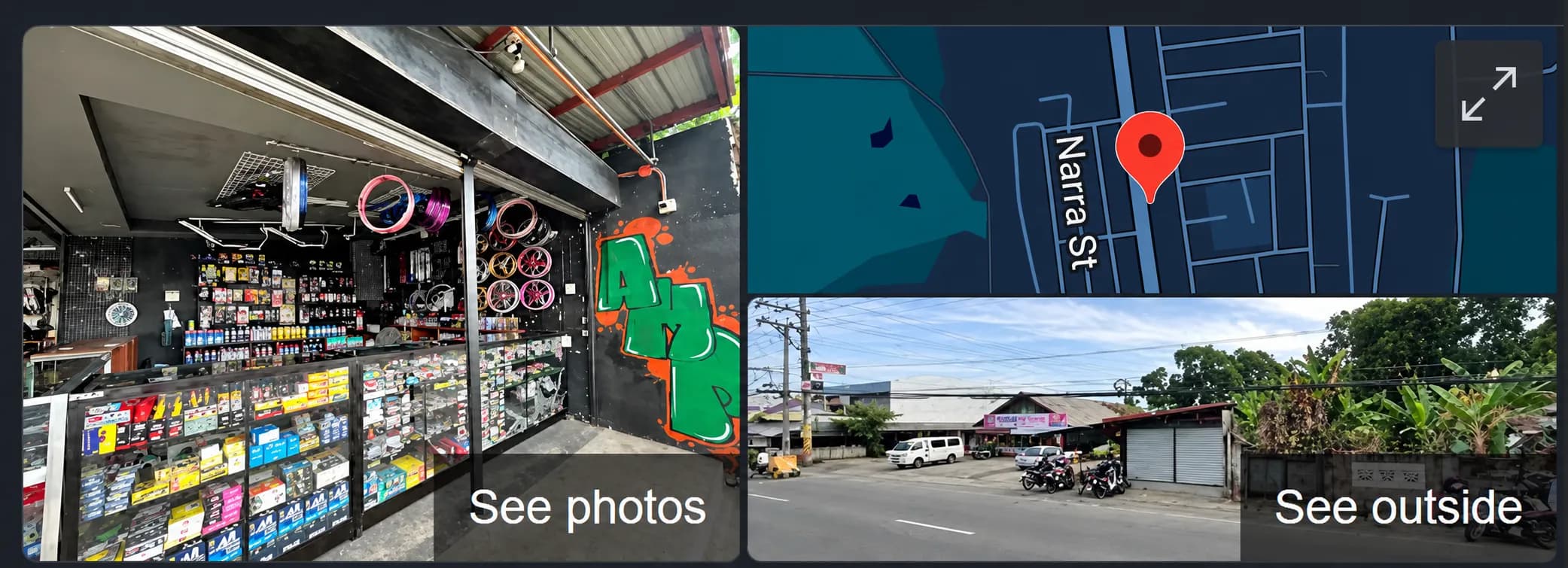
If customers visit your shop, office, restaurant, clinic, or other local business, appearing correctly on Google Maps makes it easier for them to find your location, phone number, opening hours, website, photos, and directions. The proper way for a business owner to manage that presence is through a Google Business Profile. Creating or claiming a profile is free. Once Google verifies that you are authorized to manage the business, you can control how key information appears across Google Search and Maps.
Google Maps Listing vs. Google Business Profile
A place can appear on Google Maps even when nobody at the business has claimed it yet. Google may already know about the location through public data, user contributions, or other sources. If the listing belongs to your business, do not automatically create another one. Search for the business first and claim the existing profile when possible.
Google Business Profile is the management layer for business owners and authorized representatives. After you add or claim and verify a Business Profile, you can update the business name, category, address or service area, hours, phone number, website, photos, and other information shown to customers.
Google Maps also lets any user suggest a missing place. That is useful for adding a location to the map, but a business owner should still claim and verify the Business Profile so the listing can be properly managed.
Before You Add the Business
Prepare the business information before starting. Consistency matters because Google expects the profile to represent the real-world business accurately. Use the same business name customers see on your storefront, signage, website, receipts, stationery, or other established branding.
You should also decide whether the business is a storefront, a service-area business, or a hybrid business. A storefront receives customers at its address. A service-area business travels to or delivers to customers and normally hides its address. A hybrid business serves customers at its location and also travels or delivers within a service area.
- Exact real-world business name, without adding extra keywords or locations that are not part of the name.
- Primary business category that best describes the main activity.
- Complete physical address if customers actually visit the location.
- Service areas if the business travels to customers or delivers locally.
- Current phone number and website.
- Regular opening hours and any special hours that are already known.
- Real photos of the storefront, signage, interior, products, team, or work where appropriate.
- Access to the business phone, email, premises, website, or other evidence Google may use during verification.
Step 1: Search for Your Business First
Open Google Search or Google Maps and search for the exact business name together with the city or area. This first check helps prevent duplicate profiles.
If the correct business already appears and is unclaimed, use the option to claim the business and continue with verification. If the profile is already verified by someone else and you are authorized to manage the business, Google provides an ownership-request process instead of asking you to create another listing.
If no matching Business Profile exists, continue by creating a new one.
Step 2: Add Your Business to Google
On a computer, go to Google's Business Profile setup page and choose the option to add your business. Enter the business name and follow the setup flow.
Google will ask for information such as the business category, whether customers can visit a location, the address or service area, and contact details. The exact sequence can vary because Google changes the interface and may ask different questions depending on the business type.
- Go to business.google.com/add.
- Select Add your business to Google.
- Enter the real business name.
- Choose the most accurate primary category.
- Add the physical address if customers are served there.
- For a service-area business, enter the areas you serve and hide the residential or non-customer-facing address.
- Add the business phone number and website when available.
- Review the details carefully before proceeding to verification.
Step 3: Put the Map Pin in the Correct Place
The address and the map pin should lead customers to the real entrance or business location. This matters especially in areas where street numbers are incomplete, several businesses share a compound, or the address Google recognizes is slightly different from the location customers actually use.
If Google cannot find the exact address, you may be able to position the business directly on the map. For an existing Maps location with an incorrect pin, Google also provides address and pin correction tools.
Do not place the pin at a nearby landmark simply because it is easier to find. Use the real business location and mention useful landmarks elsewhere when appropriate.
Step 4: Complete Google Verification
Creating the profile does not always mean you can immediately manage everything publicly. Google uses verification to confirm that the person requesting access is authorized to represent the business.
The available verification method is selected by Google and depends on factors such as the business type, public information, region, and business hours. You cannot simply choose any method you prefer if Google does not offer it.
Possible methods include phone or text, email, video recording, live video call, postcard, or other verification flows. Some profiles may need more than one method. Google says a completed verification review can take up to five business days, although some profiles may be verified faster.
- Follow only the verification options shown inside your Business Profile.
- For phone or SMS verification, make sure the business can receive the call or text.
- For video verification, be prepared to show the real location, signage, equipment, access, or other evidence that connects you to the business.
- Keep verification codes private. Google states that it will not ask you to share the code with another person.
- Avoid repeatedly changing major business information while verification is pending unless a correction is necessary.
Step 5: Complete the Profile After Verification
Once the profile is verified, fill in the information customers actually need. A complete profile is easier to trust and more useful than a listing with only a business name and map pin.
You can manage a verified profile directly through Google Search or Google Maps while signed in to the Google Account connected to the Business Profile. Google may review edits before publishing them.
- Confirm the business name, primary category, address, pin, and service area.
- Add regular hours and update special or holiday hours when needed.
- Add the main business phone number and official website.
- Write a useful business description focused on what the business provides.
- Upload current, real photos of the business instead of generic stock imagery.
- Add services, products, menu or booking links when the relevant profile features are available.
- Review the profile from a customer's perspective on both Search and Maps.
If You Run a Service-Area Business
A plumber, cleaning service, mobile mechanic, home-service provider, delivery business, or similar company may serve customers without receiving them at a public storefront. Google treats these as service-area businesses.
If customers do not visit your business address, Google says the address should be removed from the public profile and the service area should be used instead. Service areas are entered using cities, postal codes, or other supported areas rather than a simple radius.
Google currently allows up to 20 service areas and advises that the overall area generally should not extend much farther than about two hours of driving time from the business base, although some businesses may reasonably cover a larger area.
Common Mistakes That Can Cause Problems
Many Google Maps problems begin with trying to optimize the profile by adding information where it does not belong. Google Business Profile is not a keyword field. The information should describe the real business accurately.
Google can reject edits, change profile information, or restrict a profile when the listing does not follow its guidelines. It is safer to build an accurate profile than to try to make the business name look more searchable.
- Creating a duplicate profile instead of claiming an existing one.
- Adding keywords, services, phone numbers, or city names to the business name when they are not part of the real-world name.
- Using a P.O. box, remote mailbox, or ineligible virtual office as the business location.
- Showing a home address publicly when the business only travels to customers.
- Choosing several unrelated categories just to appear in more searches.
- Using an inaccurate map pin or another business's address.
- Publishing old hours, disconnected phone numbers, or a broken website.
- Claiming a business without being the owner or an authorized representative.
- Creating separate profiles for the same business location without a legitimate reason.
What If the Business Is Missing From Google Maps but You Do Not Own It?
If you simply know that a legitimate place is missing, Google Maps allows users to add a missing place. On a computer, search for the address and choose Add a missing place. On mobile, the option is available through the Contribute section in Google Maps.
Adding a missing place is different from claiming management access. Only the owner or an authorized representative should verify and manage the Business Profile.
Does Adding Your Business Guarantee Better Google Rankings?
No. Adding and verifying a Business Profile makes the business eligible to be properly represented on Google Maps and local Search, but it does not guarantee a particular ranking or position.
The useful goal is accuracy: correct business information, the right category, a precise location or service area, useful photos, current hours, a working website, and an actively maintained profile. Reviews and other signals may influence how customers evaluate the business, but the profile should not be treated as a shortcut around the quality of the business or its website.
If your business also has a website, keep the business name, address where applicable, phone number, services, and other core information consistent. Make it easy for customers to move between Google, the website, directions, calls, bookings, and other real conversion actions.
Quick Google Maps Business Setup Checklist
Use this checklist after setup so the listing is useful to customers and easier to maintain later.
- Search Google first and avoid creating a duplicate.
- Claim an existing profile when one already represents the business.
- Use the real-world business name exactly.
- Choose the most accurate primary category.
- Enter a precise address or configure the correct service area.
- Check the map pin and customer entrance.
- Add a working phone number and official website.
- Complete the verification method Google provides.
- Add accurate hours and special hours.
- Upload current real photos.
- Check the live profile on both Google Search and Google Maps.
- Review the profile periodically so old information does not remain public.
Verified references
Sources & Methodology
This guide was checked on September 21, 2026 against current Google Business Profile and Google Maps Help documentation. Google can change its interface, verification options, eligibility rules, and review process, so follow the current prompts shown in your own Google account. ConduitCode Labs is not affiliated with Google.
- Add or claim your Business ProfileGoogle Business Profile Help: Official instructions for creating a new Business Profile or claiming an existing business.
- Verify your business on GoogleGoogle Business Profile Help: Official verification methods, review timing, and verification-code guidance.
- Guidelines for representing your business on GoogleGoogle Business Profile Help: Official business-name, address, storefront, service-area, and profile-quality guidelines.
- Manage your service areasGoogle Business Profile Help: Official rules and setup guidance for service-area and hybrid businesses.
- Business eligibility and ownership guidelinesGoogle Business Profile Help: Official eligibility and ownership requirements for Business Profiles.
- Edit your Business ProfileGoogle Business Profile Help: Official instructions for updating business information after setup.
- Add a missing place to Google MapsGoogle Maps Help: Official alternative for adding a legitimate missing place to Google Maps.
- Fix a missing address or wrong pin locationGoogle Maps Help: Official instructions for correcting an address or map pin.
Clear answers before you plan
Frequently Asked Questions
Is it free to add my business to Google Maps?
Yes. Google states that eligible businesses can add or claim a Google Business Profile at no charge. Optional services such as Google Ads are separate.
How long does Google Business Profile verification take?
The method and timing vary. Google says that after you complete the required verification steps, review can take up to five business days, although some profiles may be verified instantly or sooner.
Can I add my home-based business to Google Maps?
Potentially, if the business is eligible. If you travel to customers and do not receive customers at your home address, Google says you should use a service-area Business Profile and hide the address from customers.
My business is already on Google Maps. Should I create another listing?
Usually no. If the existing listing accurately represents your business, claim it instead. Creating duplicates can cause confusion and may require cleanup later.
Can I choose how Google verifies my business?
Not necessarily. Google automatically determines which verification methods are available for a profile. Depending on the business, the offered method may include phone, text, email, video, live video, postcard, or another process.
Can I add keywords to my business name to rank better?
Google requires the Business Profile name to reflect the real-world business name used consistently on signage, branding, stationery, and the website. Adding unnecessary keywords or location terms can violate the guidelines.
What if Google Maps shows the wrong location pin?
Use Google's address or pin correction tools to move the location to the real business position. For a Business Profile you manage, also check the address and location fields directly in the profile.
A practical next step
Make it easy for local customers to find you.
A Google Business Profile works best when the information on Maps, Search, and your website all tell the same clear story. ConduitCode Labs can help with local-business websites, technical SEO, structured data, and the search setup around them.

About the author
Wayne Pastoral
Full-stack developer behind Conduit Code Labs, working across Shopify, WordPress, web applications, performance, accessibility, and integrations.
Learn more about WayneContinue reading
More from Business & Commerce

How Much Does a Website Cost in the Philippines in 2026?
Website cost in the Philippines for 2026, with realistic PHP and USD ranges for business sites, e-commerce, custom apps, hosting, and maintenance.
Read article
Does Your Small Business Need a Website If You Already Have Social Media?
Already using Facebook, Instagram, or TikTok for your small business? Learn when social media is enough, when a website matters, and how both work together.
Read article
Can AI Find Your Business? A 2026 Guide to ChatGPT, Claude, and Google AI Search
See how ChatGPT, Claude, Google AI Overviews, and AI Mode find business websites, what improves visibility, and which AI SEO claims you can ignore.
Read article