
Unknown Admin Accounts and File Manager Plugins: Hidden WordPress Risks to Check After PHP2Shell
How to spot an unknown admin account in WordPress, what to do before you delete it, and why file manager plugins and the file editor put your site at risk.
After PHP2Shell was disclosed in October 2026, we helped website owners check and coordinate patching on their WordPress sites; our earlier guide covers the flaws themselves. A patch fixes the vulnerability, but it doesn't tell you who already has a key. Our follow-up review found file editor and file manager plugins, and user accounts nobody could readily match to a known owner. Any unrecognized account deserves a check, and an unknown admin account is the most dangerous kind. This guide shows you how to spot one in WordPress, what to do before you delete it, and how to remove the file-editing tools that make a stolen login so damaging.
What We Found When We Looked Past the Patch
Patching closes the door. A security review checks whether anyone already walked through it, and what would make the next break-in worse. After the PHP2Shell work, we reviewed several live and staging WordPress environments for website owners, looking at visible user roles, security-related activity and the available web-server and PHP error logs.
Where supported, we created recovery points before or during the review and kept a dated record of the environment state. Observed findings stayed separate from items that still needed checking.
Two risks stood out, and neither depends on PHP2Shell. The table sums them up without client details or counts.
| Finding | What we saw | Why it matters |
|---|---|---|
| File editor and file manager plugins | Dashboard tools that let a logged-in user edit files on the server. | Anyone who gets that login, or exploits a flaw in the plugin, can add or change PHP code on the server. |
| Suspicious user accounts | Accounts nobody could readily match to a known owner, recorded for ownership checks rather than judged on sight. | An account nobody can vouch for may be a forgotten login or a sign of unauthorized access. Until someone verifies it, you can't tell which. |
| Signs of compromise | No confirmed compromise in the sampled evidence. This was not a full forensic clearance. | Finding no confirmed compromise in limited evidence lowers concern; it is not proof that nobody got in. |
Why One Admin Account Is All an Attacker Needs
The administrator (admin) role is the highest level of access on a standard WordPress site: an admin can add users, install plugins, switch themes and change any setting. That is why an unknown admin account matters more than any other stranger on your site. On most sites, an admin login is not just access to content; it is a route to running code on your server.
The chain from login to takeover is short, and every step uses ordinary WordPress features.
- Admin access: a stolen password, a forgotten account, or a new one someone created.
- A way to write files: a plugin upload, the Theme or Plugin File Editor, or a file manager plugin.
- PHP code on the server: the attacker's own code now sits among your site's files.
- A backdoor: hidden code or an extra account that keeps the attacker in after you change passwords.
- Full takeover: the attacker can change any file or setting, and deleting the original account no longer locks them out.
What Attackers Did After the wp2shell Attacks
This chain is not theoretical. After the July 2026 "wp2shell" attacks on WordPress core, Wiz reported attackers uploading plugins containing webshells through the normal plugin installer, and InMotion Hosting's recovery write-up describes attackers creating new administrator accounts. A webshell is a small hidden script that lets an attacker run commands on your server from a browser.
InMotion Hosting also describes how attackers kept their foothold. They added a must-use plugin (mu-plugin: a plugin WordPress loads automatically and that can't be switched off from the Plugins screen) that restored deleted files. They also hid PHP files in the uploads folder disguised as core class files, and stored encoded payloads in the wp_options database table.
Don't confuse the two: wp2shell was a pair of WordPress core flaws (CVE-2026-63030 and CVE-2026-60137), while PHP2Shell is a pair of flaws in PHP itself. wp2shell shows what attackers do once they reach admin level, but it doesn't explain anything in our review.
How to Spot Unknown or Suspicious Admin Accounts in WordPress
Start with the dashboard, confirm with a second source, then rule out innocent explanations.
Check the Users Screen
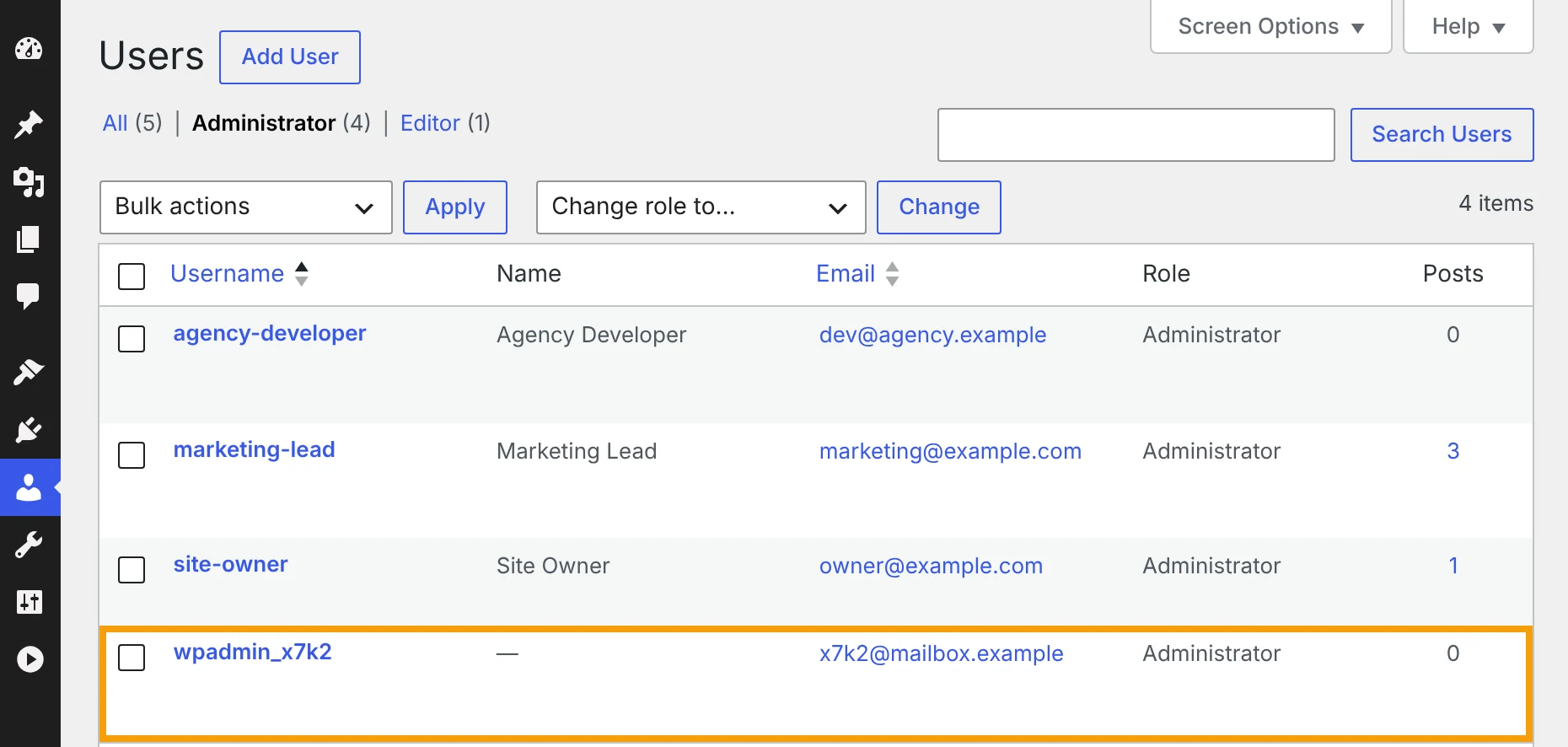
Go to Users → All Users and click the Administrator filter. The number in parentheses is your admin count, and you should be able to name the person behind each one.
Then check each row for these warning signs.
- An administrator nobody on your team recognizes.
- A generic or random-looking username, such as a word plus a string of letters and numbers.
- An email address on a domain unrelated to your business, or a disposable inbox.
- Admin rights with no posts or other legitimate activity.
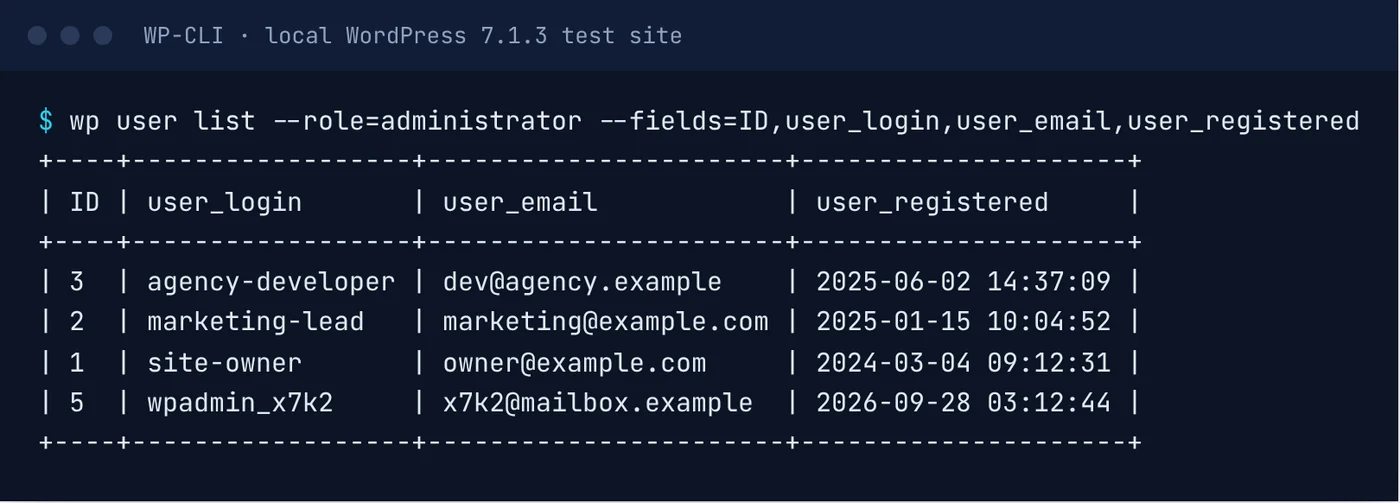
- A registration date clustered around a known incident (the Users screen doesn't show it, so use the next check).
Double-Check With WP-CLI or the Database
Don't rely on the Users screen alone. Some malware hides rogue administrator accounts from it, so your dashboard can look normal while an extra admin still exists.
For developers: WP-CLI is the official command-line tool for managing WordPress from a server terminal. The command below lists every administrator with their ID, username, email and registration date, and it changes nothing.
Compare the output with the Users screen and question any registration date you can't explain. If an account appears here but not in the dashboard, or you want the final word, have your host or developer check the database directly.
For developers
wp user list --role=administrator --fields=ID,user_login,user_email,user_registeredRule Out Innocent Explanations
Innocent explanations are common: a former employee, a contractor, the agency that built the site, or a plugin or host support account that nobody removed. Treat the account as suspicious until someone verifies it, but don't call it malicious without evidence.
If a legitimate owner turns up, check that they still need full control: a former contractor's account should go, and a content writer can move to the Editor role.
- Ask your team, past agencies and your host whether the account is theirs.
- Match the registration date to onboarding records, contracts or support tickets.
- Contact the person through details you already have, not the account's email.
- Check its posts, plugin installs, settings changes and logins in your activity log.
Found One? What to Do, Step by Step
Work through these steps in order. Deleting first feels safest, but it destroys the evidence you need.
If a step feels beyond you, stop after step 3 and get help, since locking the account cuts off its current logins while you get help. The developer commands after the list match steps 3, 5, 6 and 7.
- Don't delete it yet. Deleting erases clues about when it appeared and what it did.
- Document it. Screenshot the Users screen and note the user ID, username, email and registration date.
- Lock it. Reset its password and end all of its sessions, so its current logins stop working.
- Check what it did: posts, plugin installs, file changes, and activity and server logs from around its registration date.
- Remove it and reassign its content to a known account, so nothing is lost.
- Rotate passwords and salts. Change every admin password, then replace the salts (security keys: random values in wp-config.php that protect login cookies), which logs everyone out.
- Verify core and plugin integrity. A file integrity check flags core or WordPress.org plugin files that differ from the official release; it can't vouch for themes or for premium and custom plugins, so have those reviewed separately. Also check the uploads folder for PHP files and the mu-plugins folder for anything unfamiliar.
- Decide whether this is an incident. If the account installed plugins, changed files or created users, follow the recovery steps further down.
For developers
wp user session destroy <user> --allwp user delete <ID> --reassign=<ID>wp config shuffle-saltswp core verify-checksumswp plugin verify-checksums --allfind wp-content/uploads -name "*.php"ls wp-content/mu-plugins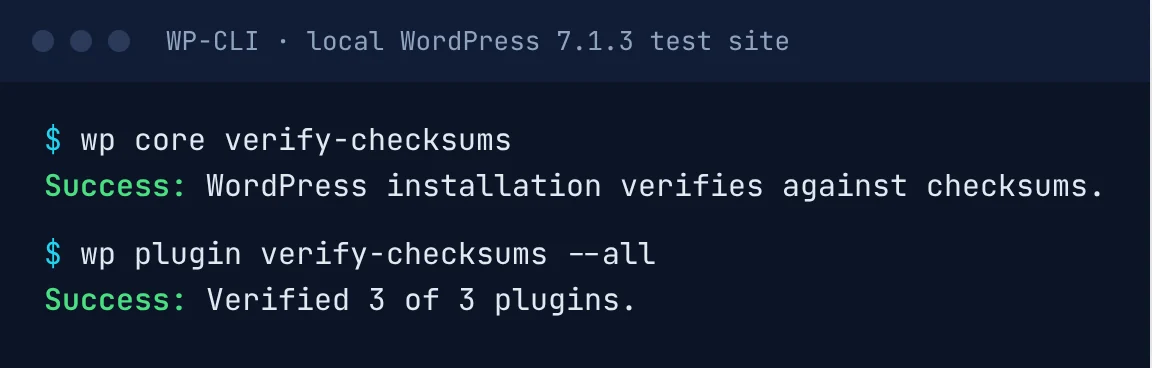
File Manager Plugins and the Built-In File Editor: Convenient, and Dangerous
Both tools exist to save time. Both also mean that whoever holds an admin login can change the code your site runs, straight from a browser.
What They Do, and Why Attackers Love Them
WordPress includes a Theme File Editor and a Plugin File Editor, under Appearance, Plugins or Tools depending on your theme. They let any administrator edit PHP files from the browser.
File manager plugins go further, adding full file-system access inside wp-admin: upload, edit or delete any file.
For an attacker, that is the ideal shortcut. With an admin login, or a flaw in the plugin itself, it becomes instant code execution on your server.
A Real Example: CVE-2020-25213 in the File Manager Plugin
The File Manager plugin (wp-file-manager) shows how bad a plugin flaw can get. Versions before 6.9 let attackers who had never logged in upload and run PHP files through a bundled elFinder connector file.
NVD rates it CVSS 9.8 out of 10 (critical). Rapid7 and NVD say it was exploited in the wild in August and September 2020, SonicWall reported active exploitation that year, and it is listed in CISA's Known Exploited Vulnerabilities catalog.
The lesson goes beyond one plugin: every tool that can write files to your server is another way in.
How to Remove the Risk
First, delete file manager plugins. For file changes, use SFTP (an encrypted file transfer connection) or your host's file manager, which sit behind your hosting login instead of your WordPress login.
Next, turn off the built-in editors with one line in wp-config.php, the main WordPress configuration file. DISALLOW_FILE_EDIT removes both editors, and normal updates keep working.
That doesn't close every door. Admins can still upload a plugin ZIP containing PHP unless DISALLOW_FILE_MODS is set, so who holds an admin account matters as much as which plugins you run.
DISALLOW_FILE_MODS blocks installing, updating and deleting plugins and themes from the dashboard, dashboard updates included. Only use it when updates happen another way: WP-CLI, your host or a deployment pipeline.
For developers
wp plugin list --fields=name,status,version,updatedefine( 'DISALLOW_FILE_EDIT', true );wp config set DISALLOW_FILE_EDIT true --rawdefine( 'DISALLOW_FILE_MODS', true );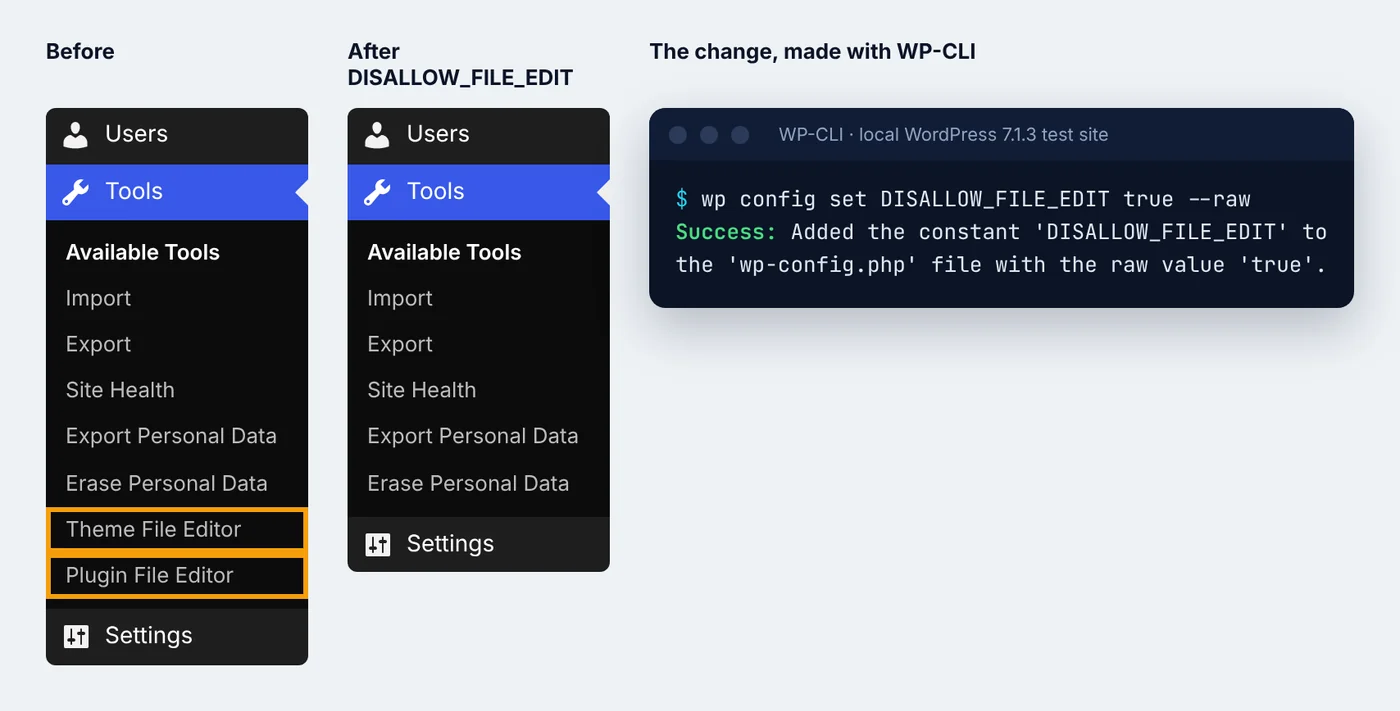
A 30-Minute WordPress Security Self-Audit
Run this checklist monthly, and whenever someone joins or leaves your team. Most items need no technical skills; pass the rest to your developer or host, and keep a dated note of what you checked.
When It's an Incident, Not Housekeeping
Most of this guide is housekeeping. Some findings, though, mean someone may already be inside, and then the order of your next steps matters.
Get professional help now if you see any of these signs.
- An admin account that appears in WP-CLI or the database but not on the Users screen.
- PHP files in the uploads folder, or must-use plugins nobody on your team added.
- Core or plugin files that fail their checksum check.
- An unrecognized account that installed plugins, edited files or created other users.
- Accounts or files that come back after you delete them.
- A warning from your host about malware or unusual activity on your account.
The Recovery Basics, in Order
If you see one of these signs, slow down. Cleaning first is how evidence gets lost and attackers keep a way back in.
- Preserve evidence: save the logs, plus a copy of the files and database, before you change anything.
- Remove access: lock or delete the accounts and files involved, once they are documented.
- Rotate all credentials: WordPress passwords, the database password, the hosting panel, SFTP or SSH logins, and API keys.
- Shuffle the salts so every existing login session ends.
- Restore from a known-clean backup if a compromise is confirmed, instead of trying to delete the bad parts by hand.
- Monitor closely afterwards for returning accounts, new files and unusual logins.
Verified references
Sources & Methodology
Facts in this guide were checked against the sources below on October 23, 2026. The screenshots come from our local WordPress 7.1.3 test site with sample accounts, not from any client website. This article is general guidance, not a finding about any particular website.
- Exploitation in the Wild of wp2shellWiz Research: Attacker behavior after the July 2026 WordPress core attacks, including webshells uploaded as plugins through the plugin installer.
- Inside wp2shell: WordPress compromise and recoveryInMotion Hosting: New administrator accounts and persistence methods seen after wp2shell, including a must-use plugin, PHP files in uploads and encoded payloads in wp_options.
- CVE-2020-25213: WordPress File Manager pluginRapid7: Affected versions and exploitation in the wild in August and September 2020.
- Nessus plugin 140211: WordPress File Manager plugin (CVE-2020-25213)Tenable: Vulnerability details for File Manager versions before 6.9.
- CVE-2020-25213: WordPress plugin wp-file-manager actively being exploited in the wildSonicWall: Active exploitation reported in October 2020.
- CVE-2020-25213 detailNIST National Vulnerability Database: Official CVE record: CVSS 9.8, exploited in August and September 2020.
- Hardening WordPressWordPress Developer Resources: Official security hardening guidance.
- Editing wp-config.phpWordPress Developer Resources: DISALLOW_FILE_EDIT and DISALLOW_FILE_MODS.
- Roles and CapabilitiesWordPress Documentation: What the administrator, editor and other roles can do.
- wp user listWordPress Developer Resources: Official WP-CLI command documentation.
- wp user session destroyWordPress Developer Resources: Official WP-CLI command documentation.
- wp user deleteWordPress Developer Resources: Official WP-CLI command documentation.
- wp config setWordPress Developer Resources: Official WP-CLI command documentation.
- wp config shuffle-saltsWordPress Developer Resources: Official WP-CLI command documentation.
- wp core verify-checksumsWordPress Developer Resources: Official WP-CLI command documentation.
- wp plugin verify-checksumsWordPress Developer Resources: Official WP-CLI command documentation. Covers plugins from WordPress.org only.
Clear answers before you plan
Frequently Asked Questions
Does an unknown admin account mean my WordPress site was hacked?
Not necessarily. Many unknown admin accounts belong to former staff, contractors, agencies or support teams and were simply never removed. Still, treat the account as suspicious until someone verifies it, because an administrator can install plugins and change code. Lock it, document it and check what it did before you decide whether it is a leftover login or a sign of a break-in.
Should I delete a suspicious admin account straight away?
No. Lock it first by resetting its password and ending its sessions, then record its user ID, username, email, registration date and activity. Deleting it straight away destroys clues you may need later. Once you know what it did, delete it, reassign its content to a known account, and rotate passwords and salts.
Can hackers hide admin accounts in WordPress?
Yes. Some malware hides rogue administrator accounts from the Users screen, so your dashboard can look normal while an extra admin still exists. Check with WP-CLI using wp user list --role=administrator, or ask your host or developer to look at the users in the database directly. If the lists don't match, treat it as a possible incident.
Is the WordPress theme file editor safe to use?
It works, but it is a risky habit on a live site. The Theme File Editor lets any administrator change PHP code from the browser, so a stolen admin login becomes a way to run code on your server. Make changes through SFTP or your normal development workflow instead, then turn the editor off with DISALLOW_FILE_EDIT.
Are file manager plugins safe?
They add a risk most sites don't need. A file manager plugin gives anyone who can use it full control of your files from wp-admin, and a flaw in the plugin can hand that control to attackers who never log in, as CVE-2020-25213 showed in 2020. Use SFTP or your host's file manager instead, and delete the plugin.
What does DISALLOW_FILE_EDIT do?
It is a wp-config.php setting that removes the Theme File Editor and Plugin File Editor from the WordPress dashboard. Add define( 'DISALLOW_FILE_EDIT', true ); to the file, or run wp config set DISALLOW_FILE_EDIT true --raw. It doesn't block plugin uploads or updates. DISALLOW_FILE_MODS goes further, but it also stops dashboard updates.
If I've patched PHP2Shell, is my site clean?
Not necessarily. Patching closes the vulnerability, but it doesn't remove access someone may have gained before the patch or through another route. Our guide, Critical PHP Security Vulnerability in 2026: What WordPress Website Owners Need to Know, covers the patch itself. After patching, check your admin accounts, plugins and files with the steps in this article.
How often should I audit WordPress users?
Check your administrator list at least once a month, and every time someone joins or leaves your team or an agency finishes work on the site. Run a fuller check, with WP-CLI and a file integrity check, after any security scare or major vulnerability disclosure. The 30-minute self-audit checklist in this guide covers what to look at.
A practical next step
Need a Second Pair of Eyes?
If something on your Users or Plugins screen doesn't add up, you don't have to work it out alone. We can review accounts, plugins and file access with you, keep the evidence intact, and give you a clear list of what needs action.

About the author
Wayne Pastoral
Full-stack developer behind Conduit Code Labs, working across Shopify, WordPress, web applications, performance, accessibility, and integrations.
Learn more about WayneContinue reading
More from Web Development
Critical PHP Security Vulnerability in 2026: What Website Owners Need to Know
PHP2Shell affects the PHP runtime behind WordPress, Laravel, and other PHP websites. Learn how to verify your PHP security patch, restart workers, and test your site safely.
Read article
Node2Shell (CVE-2026-111497): What Node.js Teams Need to Patch and Check
Node2Shell (CVE-2026-111497) is a Brotli flaw in Node.js itself. See which versions fix it, which apps are exposed, and how to patch servers and containers.
Read article
Website Uptime Is Not Enough: What Businesses Should Monitor After Launch
Uptime is only the first check. Learn how to monitor forms, checkout, performance, analytics, SEO, accessibility, integrations, and other critical website journeys.
Read article