Google AI Plus Student Plan: How to Get 12 Months Free in the Philippines
A straightforward guide for Philippine college and university students to claim the Google AI Plus 12-month student offer, complete student verification, and check renewal details.
Quick Facts
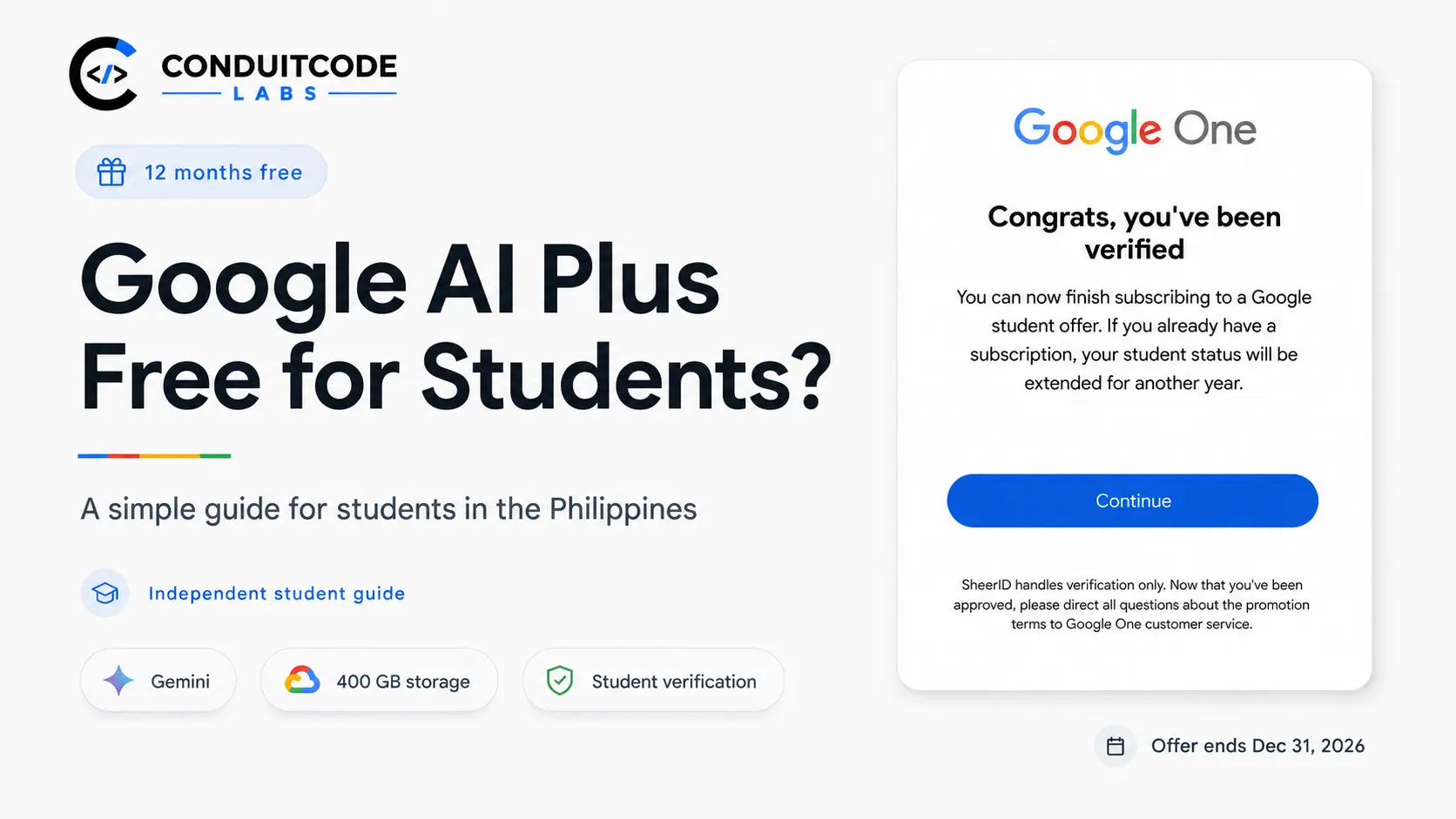
Eligible college and university students can currently get Google AI Plus at no cost for 12 months after successful student verification.
- Current redemption deadline: December 31, 2026.
- A personal Google Account is required.
- Google uses student verification through SheerID before the offer can be claimed.
- A qualifying payment method is required at sign-up.
- The current Google AI Plus student offer includes 400 GB of Google storage.
- Check the renewal price shown in your own Google Account before confirming.
What You Need
Prepare these before you start:
- Your personal Google Account.
- Your school's official name.
- Your legal name and date of birth as shown in school records.
- Your current school email if requested.
- A current student ID or other proof of enrollment if verification asks for it.
- A qualifying payment method for Google Payments.
Step 1: Choose Google AI Plus
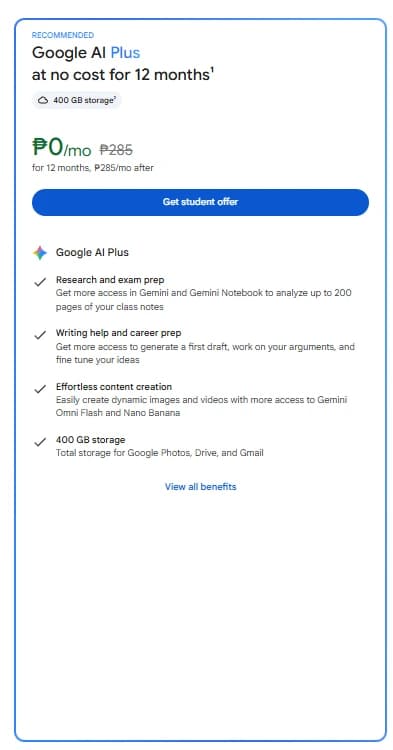
Open Google's official student offers page. Find the Google AI Plus card that says it is at no cost for 12 months, then select Get student offer.
Step 2: Start Student Verification
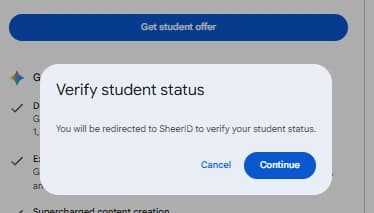
Google will show a Verify student status message. Select Continue to proceed to the student verification form.
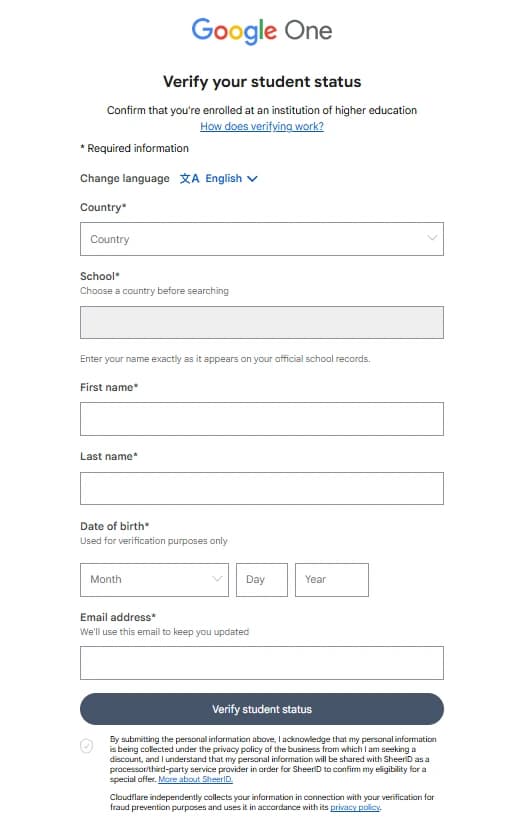
Step 3: Fill Out the Verification Form
Enter your student information exactly as it appears in your official school records.
- Select your country.
- Search for your school using its official name.
- Enter your first name and last name.
- Enter your date of birth.
- Enter the email address requested by the form.
- Select Verify student status when everything is correct.
Step 4: Upload Proof If Requested
Some students are verified immediately. If more proof is required, upload a clear document that shows you are currently enrolled.
- Student ID.
- Registration or enrollment form.
- Current class schedule.
- Tuition receipt or another document accepted by the verification request.
Step 5: Continue After Verification
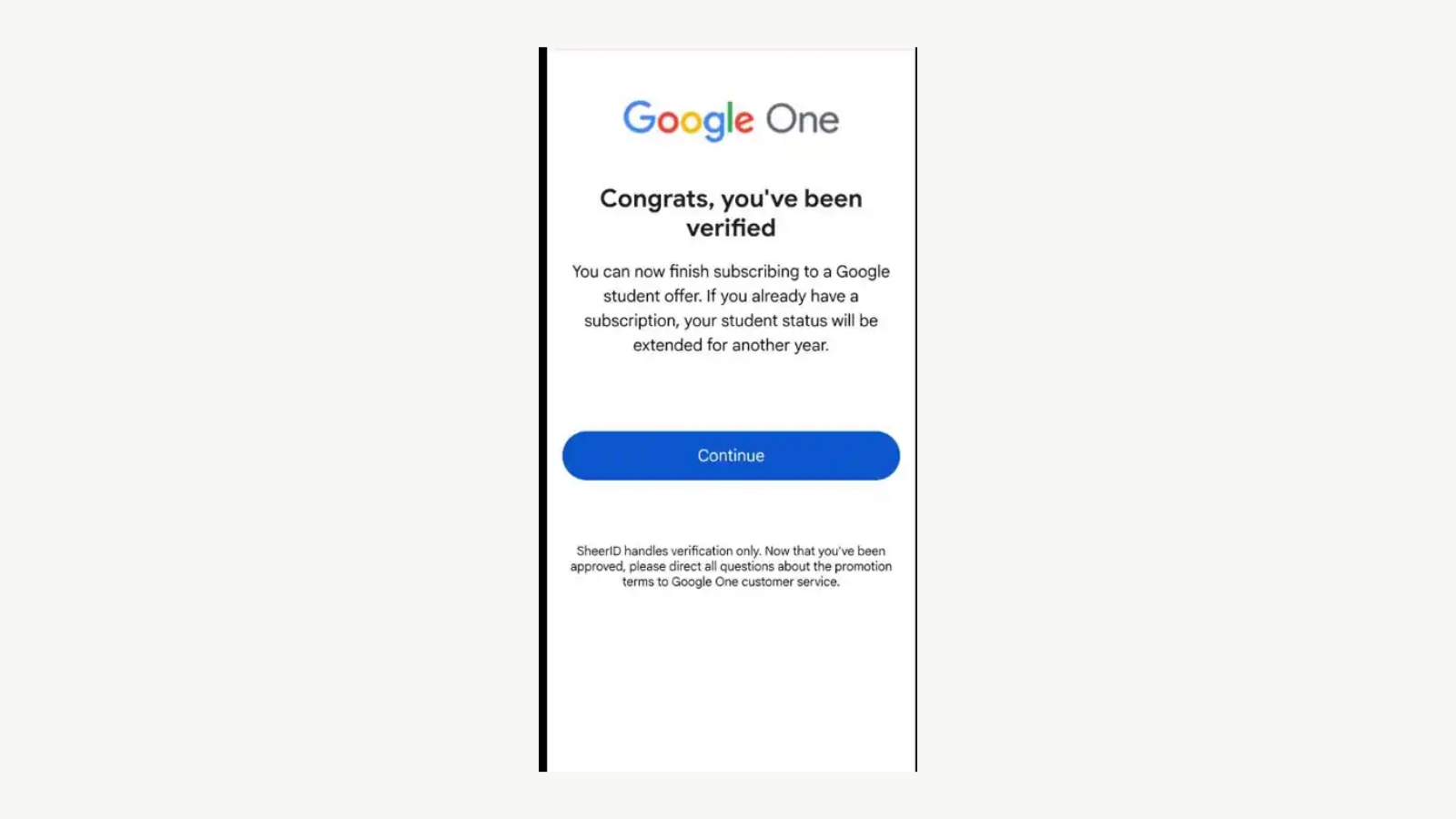
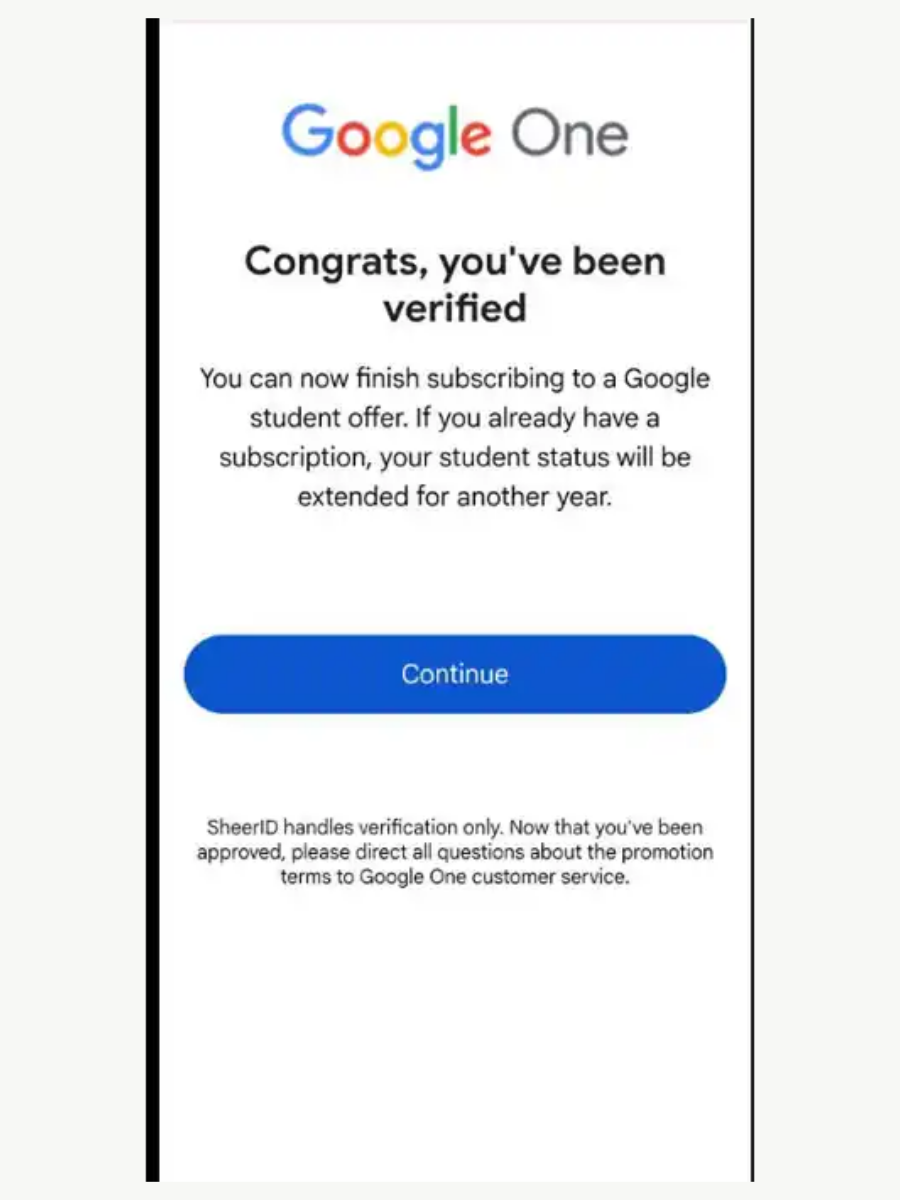
When Google One confirms that you have been verified, select Continue. Make sure you are signed in to the personal Google Account where you want the plan and storage.
Step 6: Add a Payment Method
Google requires a qualifying payment method even though the promotional period is at no cost. Your bank may show a temporary authorization while the payment method is verified.
Before confirming, make sure the checkout page still shows the 12-month student offer.
Step 7: Check the Renewal Details
Before you finish, note the exact end date and the paid renewal price shown in your own Google Account.
- Save the confirmation email.
- Take a screenshot of the final offer details.
- Set a reminder before the free period ends.
- Cancel before renewal if you do not want the paid plan afterward.
What Google AI Plus Includes
Google's current student offer outside the U.S. includes Google AI Plus. Features and usage limits can change, so check your own plan page for the final list.
- 400 GB of storage shared across Google Drive, Gmail, and Google Photos.
- Expanded Gemini access and higher usage limits than the free tier.
- Gemini Notebook for working with your own notes and class materials.
- Supported AI features in Google apps and creative tools such as Flow, subject to availability and usage limits.
After You Claim: Student Tools to Try
Google's August 19, 2026 student announcement also introduced new study workflows. You do not need these to complete the claim process, but they are useful once your account is ready.
Google says the Student Hub, study notebooks, interactive visualizations, and Deep Research in Gemini Live are rolling out to Gemini app users. The paid AI plans provide expanded access or higher limits for some of these workflows.
- Student Hub: a dedicated place for student tools, study notebooks, flashcards, practice quizzes, and offers.
- Study Notebooks: upload your class material and use it to create a study plan, diagnostic quiz, lessons, and review questions.
- Interactive Visualizations: ask for visual explanations such as tables, charts, or interactive 3D models when a topic is easier to understand visually.
- Gemini Live with Deep Research: start a research task, let it run in the background, then discuss the finished report conversationally.
Common Problems
If the claim does not work, check the step that failed:
- School not found: Search using the school's full official name.
- Verification pending: Check your email and wait for the verification review.
- Document rejected: Upload a clear document that proves current enrollment.
- Card declined: Check your billing details and whether online payments are enabled.
- Verified but cannot subscribe: Contact Google One support for the subscription step.
Verified references
Sources & Methodology
This guide was checked against Google's August 19, 2026 student announcement, Google One student-offer documentation, Google AI plan pages for the Philippines, Google Payments guidance, and SheerID's student-verification FAQ on August 23, 2026. Terms, features, pricing, and eligibility can change, so always check the final details shown in your own Google Account.
- Start the semester with one year of Gemini, on usGoogle: Google's August 19, 2026 announcement of the student AI offers and new Gemini study tools.
- Google One AI Plus Membership Student Offer TermsGoogle: Official offer terms, eligibility requirements, payment requirements, and redemption deadline.
- Claim a Google One student offerGoogle One Help: Official verification, sign-up, and renewal guidance.
- Google AI plans with cloud storage - PhilippinesGoogle One: Current Google AI Plus benefits in the Philippines.
- Student FAQSheerID: Student-verification requirements and document guidance.
- Verify your identity or payment infoGoogle Payments Center Help: Payment-method verification and temporary authorization guidance.
Clear answers before you plan
Frequently Asked Questions
Is the Google AI Plus student offer available in the Philippines?
Yes. Eligible students in the Philippines can claim the current offer after successful student verification.
How long is the student offer free?
The current offer provides 12 months of Google AI Plus at no cost after successful redemption. The current redemption deadline is December 31, 2026.
Do I need a student ID?
Not always. Verification may be automatic. If more proof is needed, you may be asked for a current student ID or another document showing current enrollment.
Do I need a payment method?
Yes. Google requires a qualifying payment method at sign-up even though the promotional period itself is at no cost.
What happens after 12 months?
The subscription can convert to a paid Google AI plan after the promotional period. Check the renewal details shown in your account and cancel before renewal if you do not want to continue.
A practical next step
Check your student eligibility
Start from Google's official student page and follow the screenshots and steps above.

About the author
Wayne Pastoral
Full-stack developer behind Conduit Code Labs, working across Shopify, WordPress, web applications, performance, accessibility, and integrations.
Learn more about WayneContinue reading
More from AI & Development

GPT-6 Astra Is Here: What Developers Should Know in 2026
GPT-6 Astra brings stronger coding, computer use, research, long-context reasoning, and agentic workflows. Here is what changed, what matters for developers, and how to evaluate it without chasing launch-day hype.
Read article
Coding Standards in the AI Era: A Practical Guide
Learn how to define, document, automate, and review coding standards so human developers and AI coding agents can contribute consistent, secure, maintainable code.
Read article
AI Can Write Code. What Still Goes Into Development?
AI can accelerate coding, while production software still depends on scope, architecture, integration, testing, accessibility, security, and accountable human judgment.
Read article